Start here · Balance 27 · Steam build 26572818
Play on Steam Deck, Mac or a phone: setup steps
What runs where: the Windows-only Steam build, Android on Google Play, iOS status, shared cloud saves, and why the Companion needs Windows x64.
Ranked data: 6 Nov 2026 to 19 Nov 2026, Balance 27.
Only two versions of Batomon Showdown are out: Windows on Steam and Android on Google Play. berrymint, the developer, says one account carries the same cloud save between them in both directions.
What runs where
The desktop download is Windows only. Neither store page lists a macOS or Linux build, and berrymint has not said whether one will follow. On phones, Android has been available since the 1.0.0 release on 15 September 2026. The Google Play listing installs the game; it is not a pre-registration page. berrymint lists the App Store on its official mobile page without a link. No iOS date has been given, and the plan can change. The free Steam demo is gone. It came down at the end of Season 0, the day before 1.0.0, so you cannot test any platform with a demo first. For the requirement table and the status of each store, read Platforms.
The rest of this page covers what you can do on each device.
Steam Deck: setup steps
The sources we review do not mention the Steam Deck. berrymint states no Deck support, the game ships as a Windows build only, and there is no Linux build. We have no tested setup for a Deck, so we cannot give you Deck install steps, Deck settings or a verdict on how the game runs there.
What the facts do support:
- Know the official status. The game is a Windows-only build. Any result on a Deck is outside what berrymint has stated, so treat it as untested.
- For play away from a PC, use Android. An Android phone runs the official mobile version. berrymint says the cloud save follows your account between desktop and phone, so progress from your Windows PC carries over. See the phone section below.
- On a Windows PC, install from your Steam library. You install Batomon Showdown like any other Steam game. Some graphics cards cannot start the game on its default renderer; this is the most common start problem on Windows, and the documented fix is a launch flag in the game's Launch Options. The exact flag and steps are on Install.
There is no Steam Deck verification status, controller layout or Deck-specific setting in the sources we review. If you read claims about those elsewhere, check that they come from berrymint before you rely on them.
Mac: setup steps
There is no macOS version of Batomon Showdown. The Steam store page lists Windows only, and berrymint has not announced a Mac build. We have no reviewed information on running the Windows build on a Mac through other software, so this guide does not recommend a method.
What you can do as a Mac owner:
- Play on an Android phone. Install the game from Google Play. This is an official version, and it uses the same account system as desktop.
- Wait for iOS if you use an iPhone. iOS is coming soon, but there is no date and no store link yet. Check Platforms for the current iOS status.
- Use a Windows PC for desktop play. If you have one, install from Steam there. With one account, berrymint says your save moves between desktop and phone, so you can play at home on Windows and continue on Android.
A Mac by itself has no official way to play right now.
Phone or tablet: what works
Android is the only phone platform that is out. iOS is announced, not released.
On Android:
- Open Google Play and install Batomon Showdown. The listing installs the full game.
- Use the same account that you use on desktop if you want one save across devices. berrymint says cloud saves are shared in both directions, so progress made on the phone appears on desktop and the other way round.
- Start the game while you have a connection. The game picks opponents from downloaded board bundles for your region and mode. Cached bundles let it select opponents offline. A bundle older than 6 hours that cannot be refreshed makes the game try a live search and then the bundles on disk. A connection keeps those bundles fresh.
On iOS: iOS is coming soon. There is no date and no App Store link.
On tablets: berrymint's statements name phones and desktop. We have no statement about tablets, so we cannot say which tablets the Android version supports. If Google Play lets you install it on your Android tablet, that is the store's decision, not a claim from berrymint.
Your rank, MMR, tier, division and stars are saved with your profile, and ranked results are settled with the server. How ranks work explains what happens when the server cannot be reached.
Controls and settings that help on a small screen
The sources we review describe no touch controls, graphics settings or interface scaling options, so we cannot list them. The game's rules still give you several habits that make a phone easier to play.
- Use the untimed shop. The shop has no countdown, and you never fight a live opponent who waits for you. You fight saved boards. On a small screen, take the time to read each effect before you buy.
- Reread your board before you press Battle. Once you choose Battle, buying and positioning stop. Your board is two rows of three slots, and abilities that target "above", "behind", "in front" or "adjacent" depend on position. Diagonal slots are not adjacent. Check every slot before you press Battle: one slot of difference can break an "above", "behind" or "adjacent" effect. Adjacency & Targeting has the full rules.
- Lock the shop instead of rushing. Locking is free and carries the current offers into the next day. If you need to put the phone down, or want to think, lock the offers you want. Remember that a normal reroll clears the lock, so lock again after a reroll.
- Keep a free slot. Your team holds 6 Batomon and your bench holds 4. If all 10 slots are full and a purchase cannot merge at once, it goes into overflow. Reroll, lock and Battle stay disabled until you clear it. On a cramped screen, that state is easy to miss, so sell before you buy when you are full.
- Do not overwrite an unfinished ranked run. If you start a new run over an unfinished ranked save, the game settles that run at its current win total. In the current season, that changes your stars and MMR. Finish or continue an unfinished ranked run instead of starting a new one over it. Extended continuations are exempt.
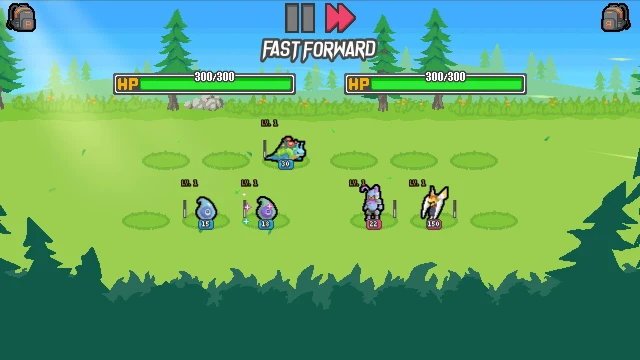
- Battles need no input. A battle resolves on its own from the boards you prepared. You can watch it, but you give no orders until the result.
For the full run loop, read How to play. For board planning, read Planning a team.
The Companion and each platform
The batomon.com Companion is an optional tool made by this site, not by berrymint. It is not part of the game. Its page is Companion.
The current Companion release supports Windows x64 and Steam build 26572818 only. Setup checks that exact Steam build, then creates a separate copy of the game for the Companion, so your Steam installation stays unchanged. You link the Companion to your private batomon.com results with a six-digit code sent by email. After that, your completed runs reach your private results.
What that means on each device:
- Windows PC (x64): supported, as long as your Steam build matches the one the Companion release expects.
- Steam Deck: not listed. The Companion needs Windows x64, and the Steam Deck is not among its supported platforms.
- Mac: no macOS version of the Companion exists.
- Android: no Android version of the Companion exists.
- iOS: no iOS version of the Companion exists.
- Linux: no Linux version of the Companion exists.
The Companion has no mobile version, and we have no information on whether runs that you finish on your phone reach your private batomon.com results by another route. If tracking your runs matters to you, play the runs you want recorded on a Windows x64 PC with the Companion set up.
Reviewed for 1.5.1
Version 1.5.1 repairs part of the opponent download path. It does not add a new platform. The first 1.5 seconds after Battle are your chance to cancel; after that the search commits to its draw. Read the 1.5.1 summary for the network changes.